
Sometimes Messenger is already installed but still feels out of date. The update does not appear, the app gets stuck, or messages arrive only after you open it. Huawei’s Community guide treats these as separate problems instead of one reason to reinstall everything.
Start with the normal update path
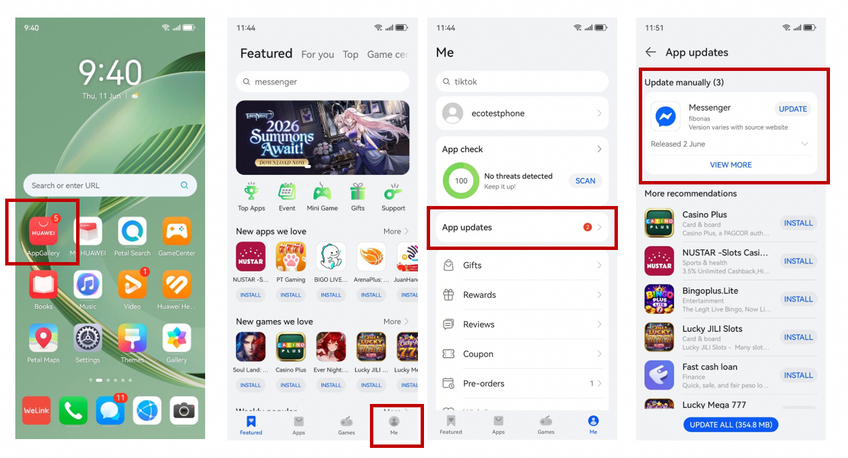
Open AppGallery, tap Me, select App updates, and update Messenger from the list. This is the direct method shown in the source and should be the first check before you change anything else.
For anyone searching how to update messenger in huawei, the important detail is that the guide uses AppGallery rather than Google Play as the main update route on the Huawei device.
When the update is stuck
If Messenger refuses to update, check the source of the installed copy. The Huawei post advises users to make sure Messenger came from AppGallery and to reinstall it from AppGallery when they need the latest version.
That keeps the fix focused: replace the app with a fresh AppGallery copy and check whether the problem disappears.
If Messenger is not installed at all
For a first-time installation, open AppGallery, search Messenger, and tap Install. The article specifically presents this as the way to download Messenger on Huawei without relying on Google Play Store.
After installation, sign in and test the basics. Open a conversation, send a message, and then close the app so you can check whether notifications continue to appear normally.
GBox is the fallback mentioned in the source
The same guide includes GBox as an alternative installation and update route. It is not presented as the first step. AppGallery remains the first store to check; GBox is there when an app is not available through that route.
If Messenger is already in AppGallery, use that path. If another required app is missing, the source suggests trying GBox instead.
Check the phone software too
A Messenger issue can happen at the same time as an older device software version. Huawei’s guide tells users to open Settings > System & updates > Software update and let the phone check for a newer version. If an update appears, install it.
You do not need to treat every Messenger problem as a Messenger-only problem. Confirming that the phone itself is current removes one obvious variable from the troubleshooting process.
If messages arrive only when you open Messenger
The source has a separate answer for missing Messenger alerts. Open Settings > Notifications & status bar, search for Messenger, and enable Allow notifications.
That is worth checking after a reinstall because the app can open normally while alerts remain disabled. If you were waiting for a message and saw it only after opening Messenger, this setting should be one of the first places you look.
After enabling it, close Messenger and ask someone to send a test message. If the alert appears without opening the app first, the basic notification setting is doing its job.
Keep the fix easy to repeat
The Huawei Community walkthrough linked through how to update messenger in huawei gives a practical order: update in AppGallery, reinstall from AppGallery if the copy is wrong or stuck, use GBox only as the alternative described in the article, check system software, and confirm notification permission.
Following that order makes it easier to see what fixed the problem and repeat the same setup the next time Messenger needs an update.